Gather
Pull wax toward your finger.

Spinodal help
A tap clouds the wax. A slow drag turns the glass. Start there, then try a tool.
Learn the gestures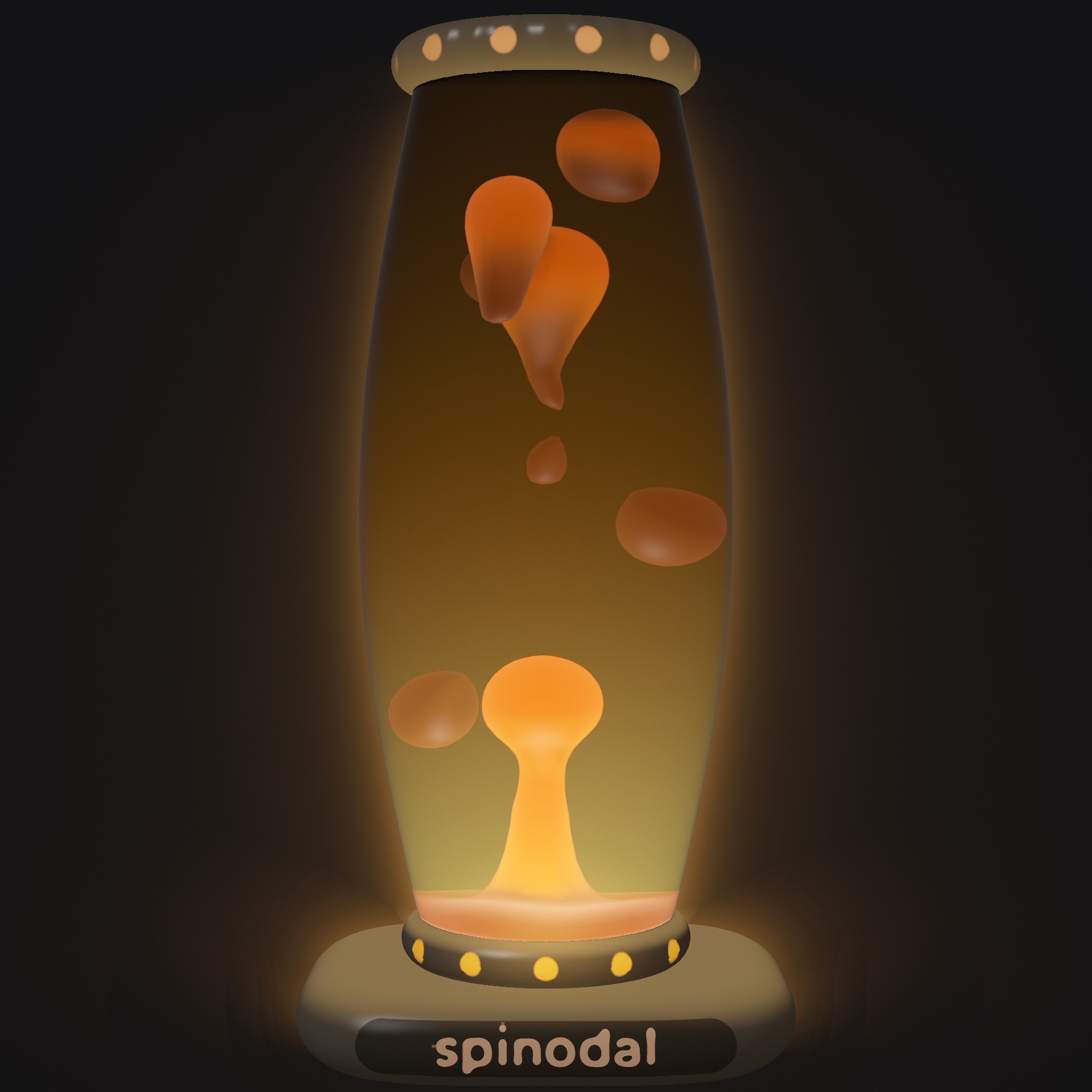
01 / Start here
Want a shake without scrubbing? Open Lamp → More → Shake now.
Newer test builds offer Device shake in Lamp → More on supported phones and tablets. Enable it, allow motion access if asked, then shake deliberately back and forth. It works in every drive mode. Turn it off to stop reading motion.
02 / Get your bearings
Tap beside the glass to reveal the controls. In the public web preview, Room is at the top left and Lamp at the top right. The tools sit to the left of the glass; the heat rail is on the right. The controls fade after a few seconds without a touch.
Artist keeps the wax moving automatically. You can turn it off to leave the lamp to its physics. Your touch still works either way.
A three-way switch chooses one driver at a time:
The choice is saved. Touch and enabled device shaking work in every mode.
Desktop tools stay beside the lamp. Tour in Lamp gives a guided introduction. Focus clears the controls; use the settings control beside the logo or Escape to return. Press V to toggle it on a keyboard.
03 / Move the wax
Pull wax toward your finger.
Stir the liquid around your finger.
Push wax away from your finger.
Tap beside the glass, choose a tool, then drag across the glass. Tap the selected tool again to turn it off and return to ordinary glass gestures.
04 / Give it a push
In the public web preview, hold the base to fire an upward jet. Let go to stop. You can also use the Jets control in Lamp.
Tap a lit dot on the base or cap to start jets. Tap a dot at the same end again to stop. Drag a light to start and aim; release to leave the jet running. Select the jet arrow to control an active jet. The surrounding base rotates the lamp.
The Jets panel provides origin, height, angle and strength controls, plus explicit Fire and Stop buttons.
The newer controls are not active in the public web preview.
Manual jets and music reactivity are part of Studio. The current app offers separate demos: 30 seconds of manual jets, followed by a two-minute cooldown, and two minutes of music-reactive motion, followed by a two-minute cooldown. The lamp keeps playing when the demo ends. Follow the access status and timing shown in your build.
05 / Make it yours
Drag the base up or down to change the heat, or use Lamp → More → Heat. The range is off to twice normal. At 150% and above, wax clings to the top. A cold lamp needs time for its first plume to rise.
In Lamp, choose a color, turn on Top light for lighting from above, or use Colour wheel for rotating lighting colors.
Cold returns the wax to a pool to warm up again. Warm starts with blobs already moving.
Newer builds put the Heat dial directly in Lamp, alongside the palette and lighting controls. Dragging the base turns the lamp instead of adjusting heat. The reset glyph shares a row with Cold and Warm. Keyboard heat shortcuts still work.
06 / Let the room join in
Jets pulse with the beat, bass swirls the wax and sharp hits push it away. The app may treat the first 12 seconds as ordinary room noise while it finds a beat. Music without a steady beat may continue to count as noise.
To stop listening in the web preview, tap Room again. A microphone cannot hear music playing only through headphones.
Sound and camera input are analyzed locally using temporary buffers. Spinodal does not record microphone audio or camera video, or upload that input. Camera and microphone access are your choice.
In newer test builds, choose Mic in the drive switch. The microphone input is labeled Mic rather than Noise. Choose Mic again to adjust the inputs. Choosing Artist or Natural stops listening.
On a bigger screen
On iPhone or iPad, use Apple’s Screen Mirroring to share the screen with an Apple TV, AirPlay-compatible TV or Mac.
To finish, open Control Center → Screen Mirroring → Stop Mirroring. This shares the device screen, including controls and other screen content that appears, rather than a separate TV-only view. Performance depends on the device and connection.
07 / Keep a hand on the keys
Click or tap the lamp first. Shortcuts do not apply while you are typing in a field.
J opens Jets; V toggles Focus; ? opens keyboard help. Arrow keys and Space act on the lamp when it has keyboard focus. Shift + P selects the previous color.
08 / When something seems stuck
Tap the empty space beside the glass. In a newer test build, use the settings control beside the logo or Escape to leave Focus. Close the open panel or use Back to leave More.
Check that Room is listening, or that Mic is selected in a newer build. Allow microphone access, use speakers rather than headphones, and try a track with a clear beat. Give the app about 12 seconds to find it.
Check permissions for this site or app in your browser or device settings. Enable only the inputs you want, then try Start listening again.
A cold start needs time. Check that Heat is not off, or choose Lamp → Start over → Warm to begin with moving blobs.
The interactive web preview needs WebGPU. Try an up-to-date browser and device that support it. A browser update may help; this guide does not require WebGPU.
The public web preview still uses a hold on the base. Newer builds use the lit dots and selectable jet arrow. Check Studio or demo access if the jet will not start.
09 / Under the glass
Spinodal is a simulated wax lamp made by Mind Bending Pixels. Its name comes from spinodal decomposition: the way an unstable mixture separates.
For the equations, measurements and design choices behind the wax, read Teaching Wax to Unmix.
Email [email protected] with your device model, operating-system version, Spinodal build number and what happened. Do not send your Apple Account password or payment details.